Free HTML to PowerPoint Converter
Turn your HTML slides into PowerPoint decks you can keep working on. Preview your slides, polish text and layout visually, and download your PPTX—all in your browser.
Start with a saved HTML deck from Claude, ChatGPT, or your own code. Choose your file in the editor.
Executive Overview & Delivery Architecture
Direct in-place text adjustments, typography control, and local asset insertion for AI-generated presentations.
Pure HTML retention
Bounded typography
Single-file HTML
Properties
Selected: Heading Block
Workflow
How to Convert HTML Slides to PPTX
Upload an existing HTML presentation, check the slides, and download your PowerPoint file. Editing is optional.
Upload your HTML deck
Open the editor and choose a single-file HTML presentation with recognizable slide sections.
Preview the slides
Check that the pages, text, and images in your HTML file appear as expected.
Polish if needed
Fix a typo, adjust a title, or reposition an image. Skip this step when the deck already looks right.
Export PowerPoint
Choose Export PPTX, then open the downloaded file in PowerPoint to check it before sharing.
Inspect a real export
Compare the HTML with its exported PPTX
Slide 5 from the same English Codex deck, exported with SlideBeaver. Download the files and check the text boxes and images in your own presentation app.
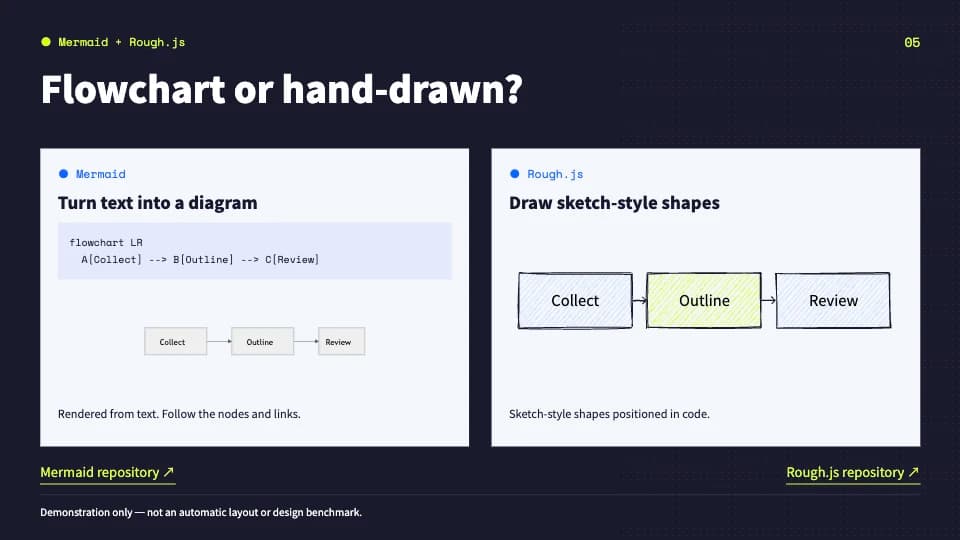
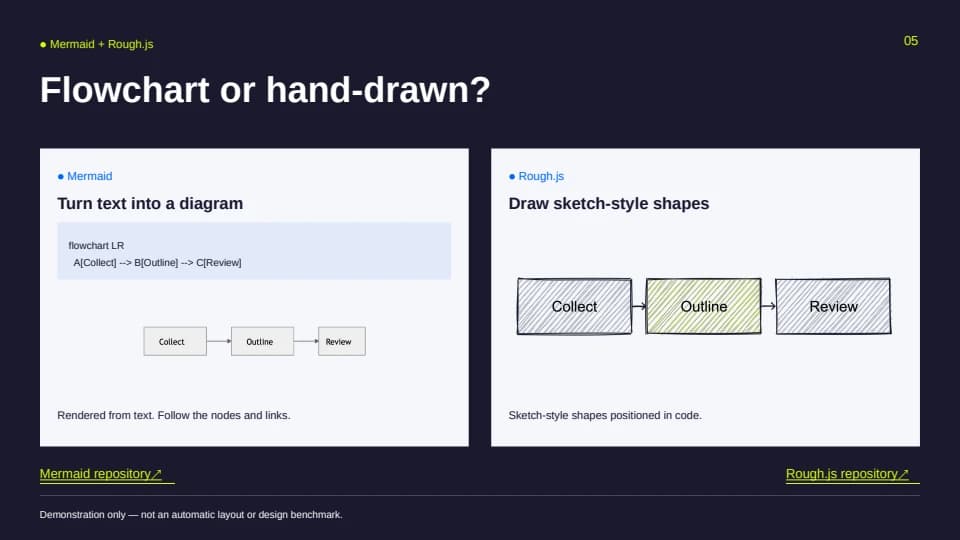
This preview was rendered by LibreOffice. Fonts and spacing can differ in PowerPoint. The file contains editable text boxes alongside images; inspect the elements you need before sharing it.
Why this workflow
Another prompt just to fix a typo?
A small change shouldn’t require regenerating your deck. Finish the details before converting your HTML slides to PowerPoint.
- Fix an overflowing title without requesting another full draft.
- Keep the HTML deck as your working source.
Practical example
Make the final edit yourself.
Adjust text and images on the canvas before exporting to PowerPoint.
Click the title or text that needs a change.
Adjust the size or position of an image.
Preview your changes, then export PPTX.
Capabilities
What to Expect from Your PowerPoint Export
A static PowerPoint file with supported editable text and basic shapes; some visual elements become images.
Editable text and shapes
Static PPTX keeps supported text boxes and basic shapes editable. Some visual elements become images; scripts and animations are excluded.
Your slide proportions
The original slide aspect ratio is preserved. Check spacing and line breaks in the downloaded file.
A static presentation
PPTX captures the slides as a static deck. Web scripts, transitions, and animated effects do not run in PowerPoint.
Fonts on your device
Web and system font aliases are substituted with common PowerPoint names. Fonts are not embedded.
Preview and polish
Make small text, image, and layout changes before export. The browser preview is not a PowerPoint rendering.
A reusable HTML source
Export the revised HTML too, so you can reopen it for further editing or present it in a browser.
Use Cases
Which HTML Presentations Can I Convert?
Start with a presentation file, rather than a webpage URL or a native PowerPoint upload.
Single-file decks with slide sections, including supported HTML output from AI tools.
HTML presentations you have coded yourself with text and images already in the document.
Decks whose required images and fonts can load in the browser. Script-generated content may need preparation.
Created your deck with Claude or an agent Skill? Review the matching handoff guide before uploading. Compatibility depends on the saved HTML and its resources.
Process your deck in your browser
Open, edit, and export your HTML file without sending the deck to a conversion server. No account is required. Remote images or fonts referenced by your HTML may still request their original hosts.
Read our Privacy PolicyFAQ
HTML to PowerPoint Conversion FAQ
Answers about input files, editable output, and the steps before download.
Is the HTML to PPTX converter free?
Yes. You can open the editor, upload HTML, make edits, and export PPTX without signing up or paying for a subscription.
Do I need to edit my slides before converting?
No. Editing is optional. Open your HTML deck, check the preview, and choose Export PPTX whenever you are ready.
Does it download a .ppt or .pptx file?
The download uses the modern .pptx format. It does not produce the older .ppt format.
Can I convert HTML slides from Claude or ChatGPT?
Yes, when the result is a supported HTML presentation file. Save the HTML first and open it in the editor. SlideBeaver does not generate a new deck from an AI prompt.
Can I paste a website URL or upload an existing PowerPoint?
No. Start with a local HTML presentation file. Webpage URL conversion and native .ppt/.pptx importing are not supported.
Will everything stay editable and look identical?
Export PPTX creates a static PowerPoint file. Supported text and shapes remain editable; some graphics become images. Fonts may be substituted, and scripts and animations are not included. Check the result in PowerPoint before sharing.
Can I use a file with external images or fonts?
External resources must load successfully. Some image hosts block access from other sites, and a failed image load can stop PPTX export. Fonts available in your browser may differ from those on the destination computer.
Is my deck uploaded to a server?
Your HTML file is processed in your browser, not uploaded to a conversion server. External images and fonts referenced by the file may still need a network connection.
Take Your HTML Slides into PowerPoint
Open the converter, choose your HTML file, and export when the deck is ready.