Why raw browser Ctrl+P breaks Claude HTML slide artifacts
Claude often builds presentations as fixed 1920 × 1080 widescreen cards stacked on a dark page or switched by keyboard scripts. Pressing Ctrl+P or Cmd+P directly on that raw file usually causes three handoff failures:
- Portrait paper clipping: Browser print defaults to A4 or US Letter portrait margins, slicing three-column metric cards across two pages or shrinking slides with uneven white borders.
- Missing dark backgrounds: Unless the stylesheet enforces exact color printing, browsers strip dark card fills and leave white text unreadable on a white page.
- Hidden slides in scripted decks: When a single-slide JavaScript viewer hides inactive sections, printing the browser tab captures only the first slide.
Try the exact workflow with our three-slide onboarding audit artifact below, or bring your own saved file.
Download the 3-slide HTML artifact sample1. Save a complete HTML file from Claude
In Claude’s Artifact panel, use the download button (or copy the full code into a local .html file) so your file starts with <!DOCTYPE html> and includes its embedded <style> rules. For broader Claude handoff preparation, see our Claude HTML slides editor workflow.
A claude.ai share URL is a hosted web page rather than an offline HTML file, and a React .jsx or .tsx artifact requires JavaScript execution to render. SlideBeaver removes scripts and external stylesheets on import to keep editing deterministic and local.
Prompt if Claude generated a React (.jsx) or Tailwind CDN artifact
Paste this follow-up in Claude to get a clean, self-contained HTML deck before uploading:
Convert this presentation artifact into one self-contained static HTML file with embedded CSS only. Use one top-level <section class="slide"> per slide at 1920x1080px, keep all slides visible in the markup without React, Tailwind CDN scripts, or JavaScript, and preserve the current colors, typography, and card layout.
2. Open the artifact in SlideBeaver and review every slide
Open SlideBeaver, click Upload, and select your saved .html file. Every detected slide appears in the left thumbnail rail at its original 1920 × 1080 aspect ratio while container padding from the outer page is isolated so cards do not shrink across pages.
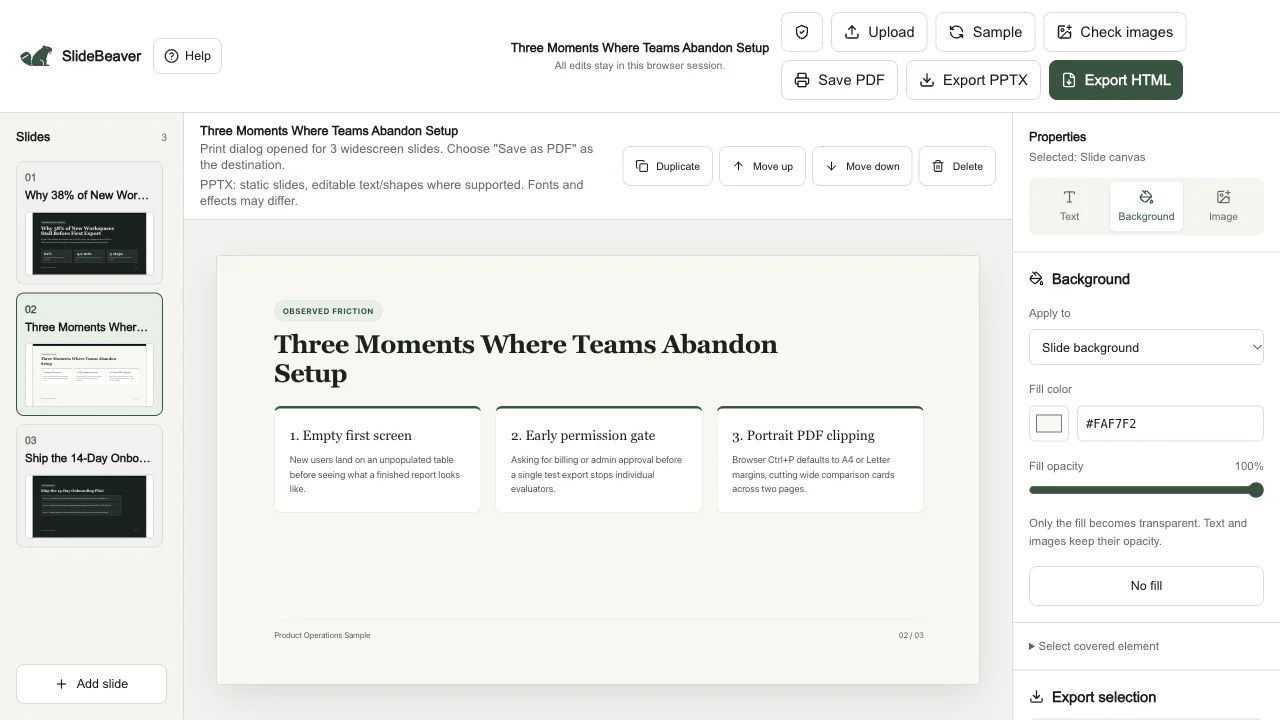
If a heading wraps onto an extra line or a label feels tight, click directly on the text in the HTML presentation editor to shorten wording, adjust font size, or replace a broken image before printing.
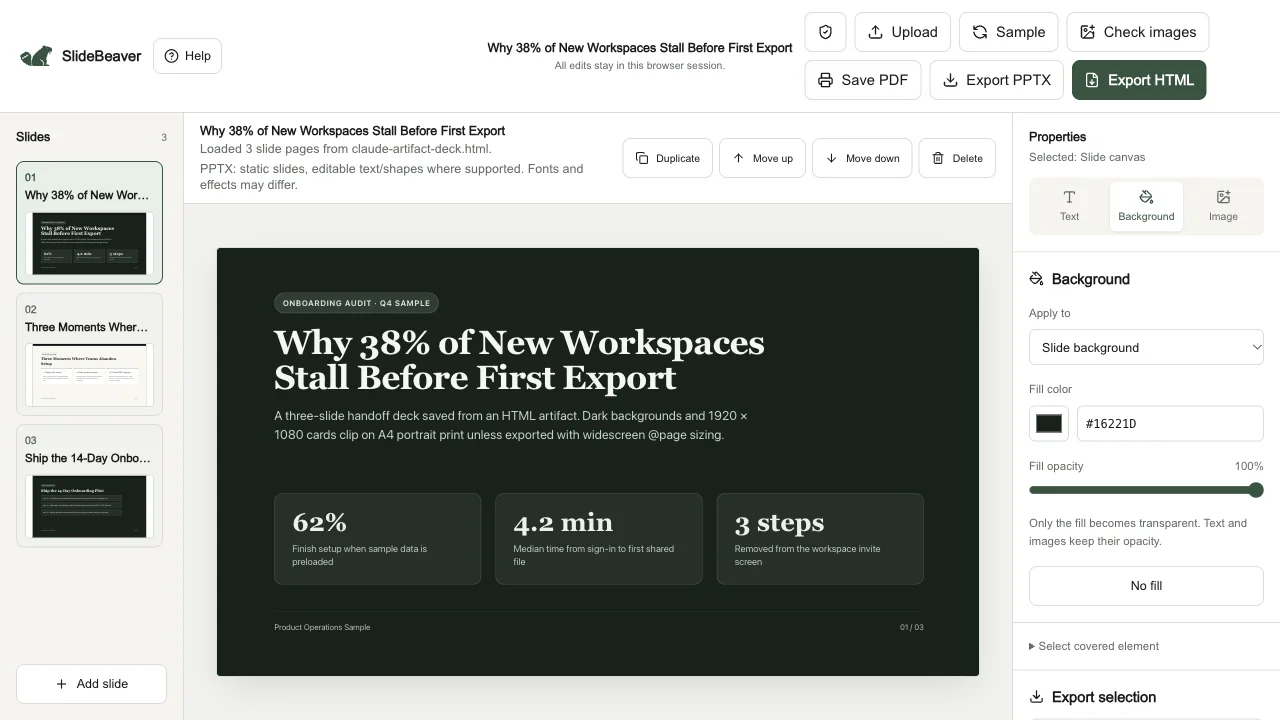
3. Click Save PDF for borderless 16:9 widescreen pages
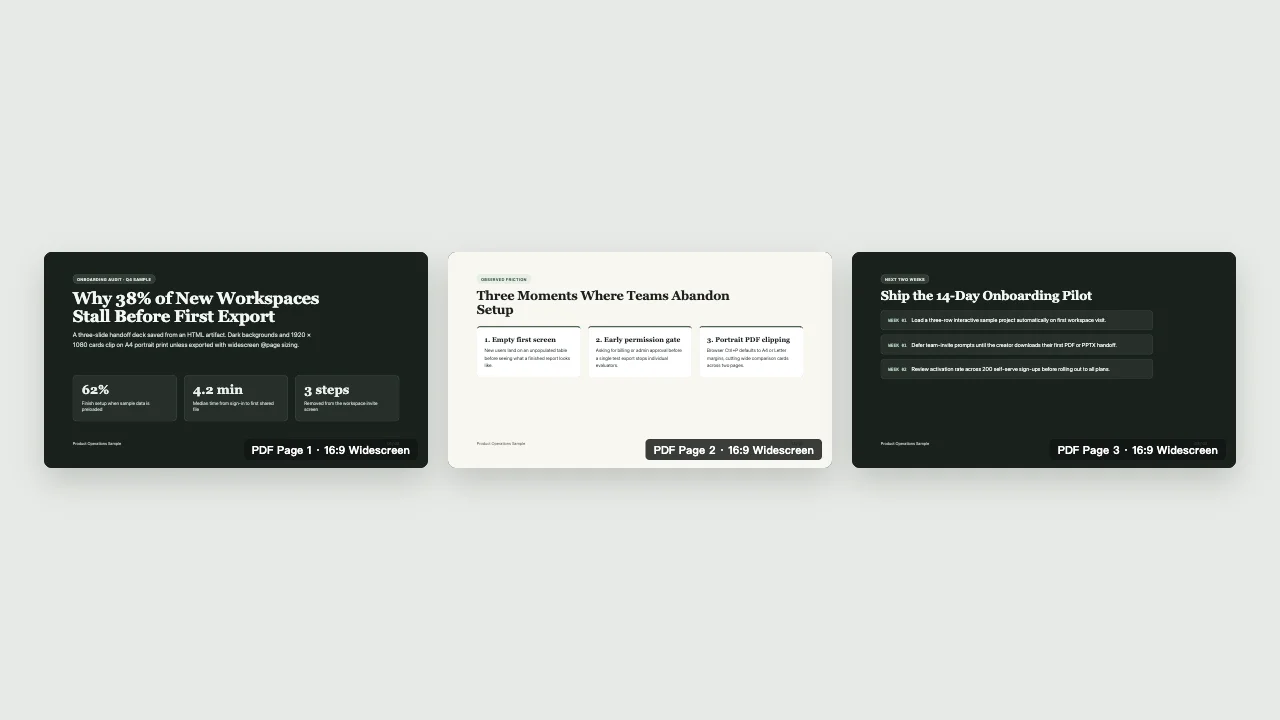
Click Save PDF in the top toolbar. SlideBeaver prepares a clean, script-free print frame with all slides expanded in order, locks @page to your exact slide canvas size with zero margins, and applies print-color-adjust: exact so dark emerald, charcoal, and warm cream backgrounds stay intact.
- In your browser’s print dialog, set Destination to Save as PDF.
- Keep Margins on Default or None and Scale on Default (100%) so the CSS
@pagewidescreen box controls pagination. - Confirm that Background graphics is enabled if your browser shows that toggle, then save the file.
PDF handoff vs. editable PowerPoint: which one should you send?
Both export options sit side by side in the same toolbar so you do not have to rebuild the deck twice:
- Choose Save PDF for read-only async updates, client email attachments, or Slack previews where exact spacing and dark backgrounds matter more than downstream text editing.
- Choose Export PPTX with our free HTML to PPTX converter when teammates need to edit headlines, swap numbers, or import the deck into Google Slides. Before promising full editability, review which PowerPoint text and shapes stay editable.
Frequently asked questions
Can I paste a public claude.ai Artifact link directly?
No. SlideBeaver works on local files in your browser and does not fetch private or shared chat URLs. Download or save the complete .html file from Claude first.
Why did my PDF have extra blank pages when I printed outside SlideBeaver?
Multi-slide HTML artifacts often add padding and gap on body so cards look spaced while scrolling. In raw browser print, that outer spacing pushes each 1080px slide past a single page height. SlideBeaver resets outer body padding and flex gaps inside its print stylesheet so three slides produce three pages.
Does Save PDF upload my presentation to a server?
No. Both the editor preview and the Save PDF print frame run locally inside your desktop browser session.
What if an image is missing in the PDF or PPTX?
Click Check images in the top toolbar before exporting, or follow the HTML to PPTX troubleshooting guide to embed a local replacement image.
Have your Claude HTML artifact ready?
Open the editor · Check PPTX editability · Browse all guides