Start with your HTML or a ready example
You need a desktop browser, a complete HTML slide deck, and access to Google Drive. If you already have a PPTX, skip to step 3.
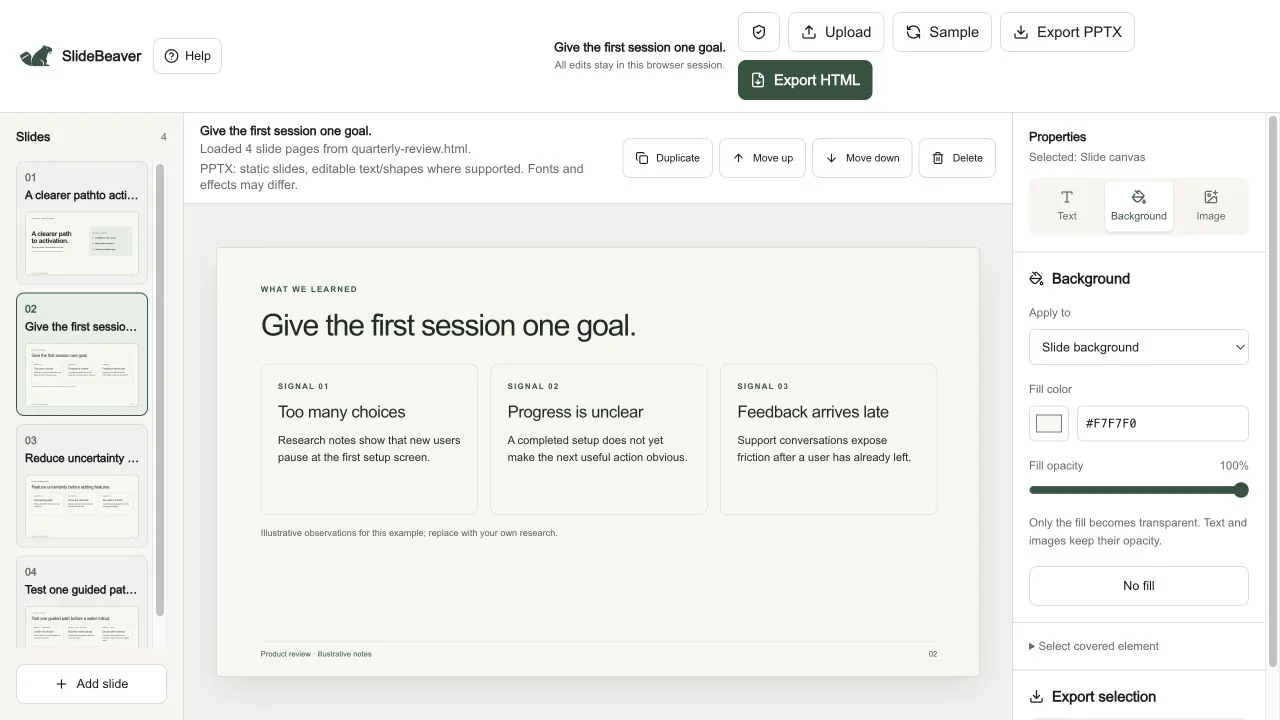
Our four-slide example is adapted from the quarterly review prompt. It uses illustrative content, a shorter second-page heading, and extra footer width to allow more room in the destination app.
Download the guide example HTML1. Upload your HTML presentation
Open SlideBeaver, choose Upload HTML, and select your file. Check every slide and the thumbnail order before exporting.
A chat link, live website URL, or short code fragment is a different input. Save the full document first. If JavaScript generates the content, request a static copy with every slide visible.
2. Make the final changes and export PPTX
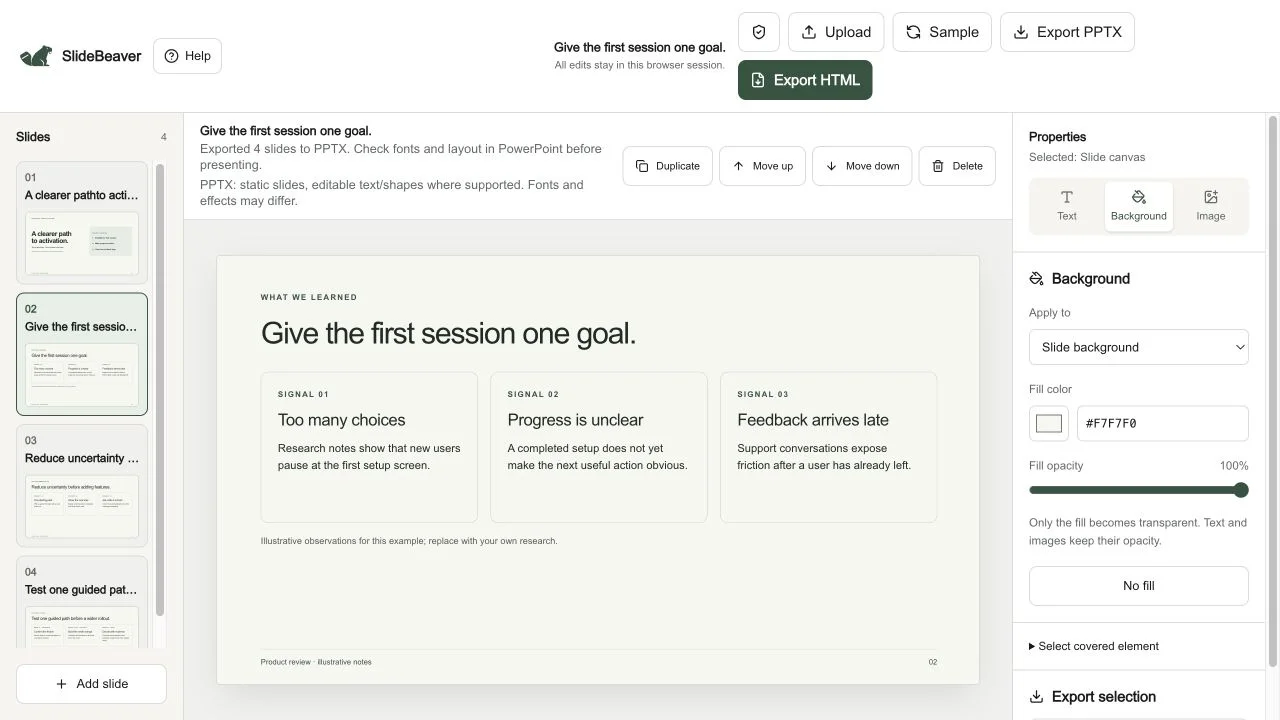
Correct a word, shorten a heading, or adjust supported text and image placement. Choose Export PPTX and keep the downloaded file for comparison.
The export is static. Supported text and basic shapes may remain editable; some graphics become pictures. Source scripts and animations are excluded, and fonts are not embedded.
3. Upload to Drive and open with Google Slides
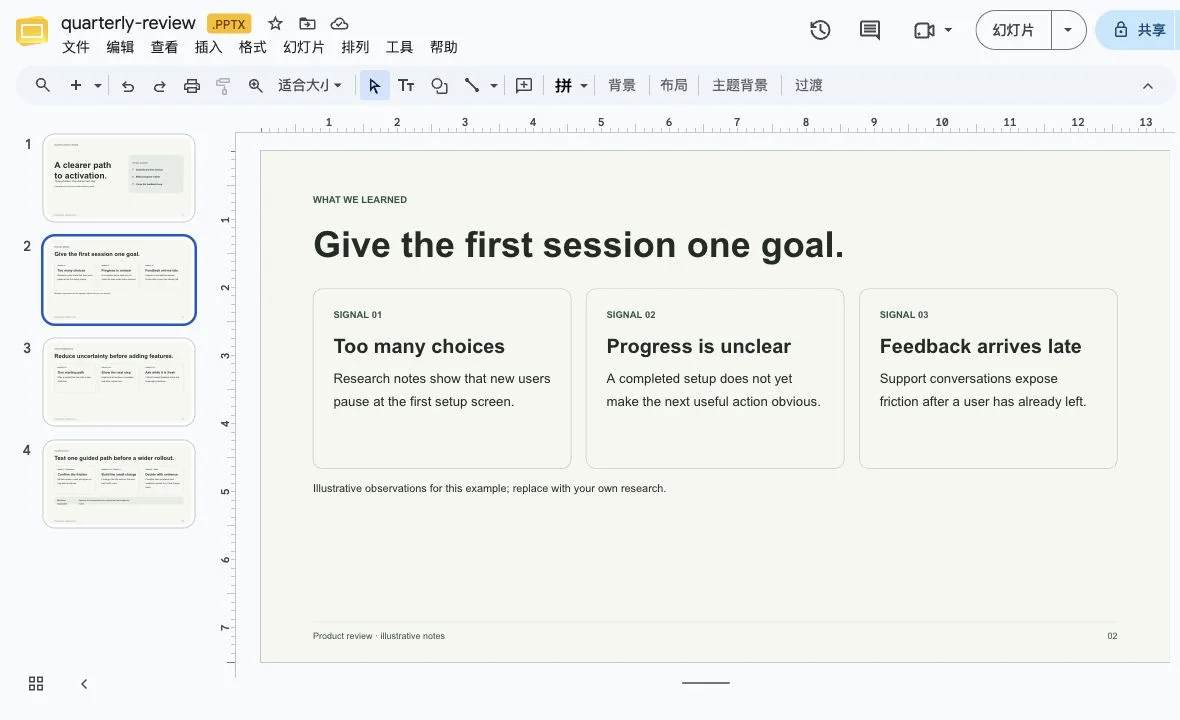
In Google Drive, choose New → File upload and select your PPTX, or drag it into Drive. After upload, open it with Google Slides. If you see a preview, use its Open with option. See Google’s Office editing instructions.
Uploading to Drive sends the PPTX to Google. SlideBeaver exports the file in your browser; it does not connect to your Drive or upload on your behalf.
Office editing or a native Google Slides copy?
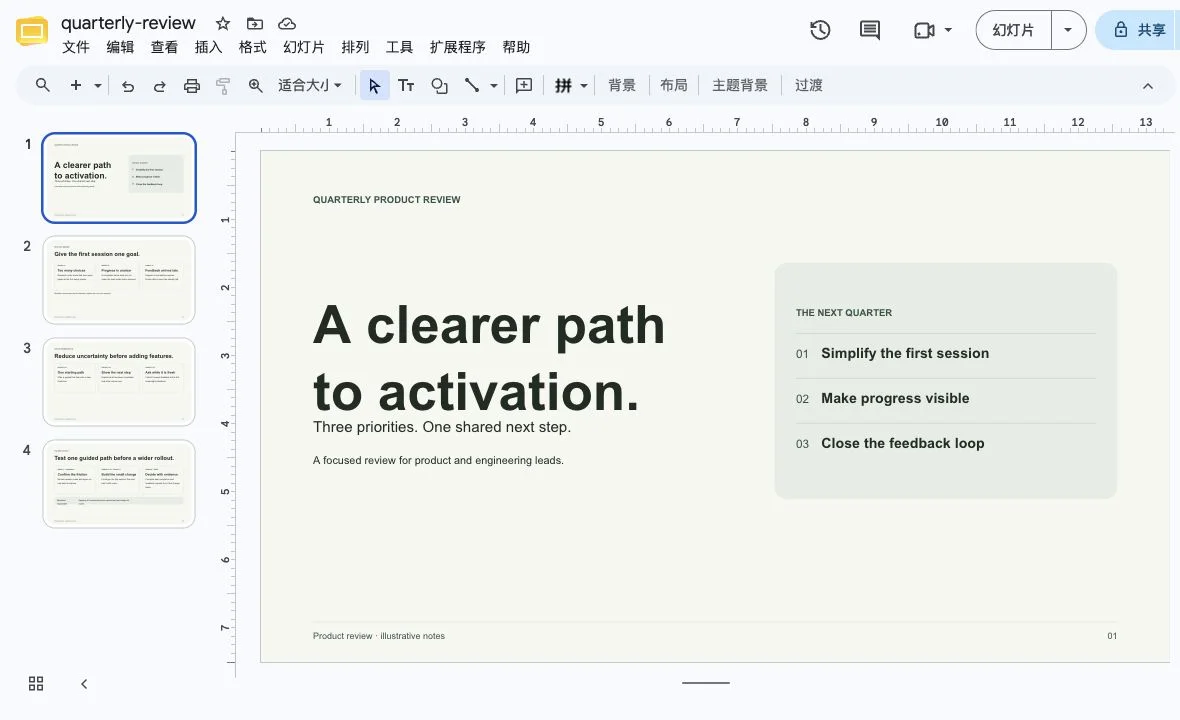
A .PPTX badge means you are still editing the Office file. To create a native Slides copy, choose File → Save as Google Slides. This is a separate step in Google’s conversion guide.
Check the version you plan to share
- Compare every slide with the HTML, including page numbers, footers, diagrams, and image cropping.
- Double-click a word you need to change. A caret or word selection confirms text editing for that element.
- Check its font, weight, text-box width, and line breaks. The same font name does not guarantee identical wrapping.
- Save and reopen a small edit before sharing the file.
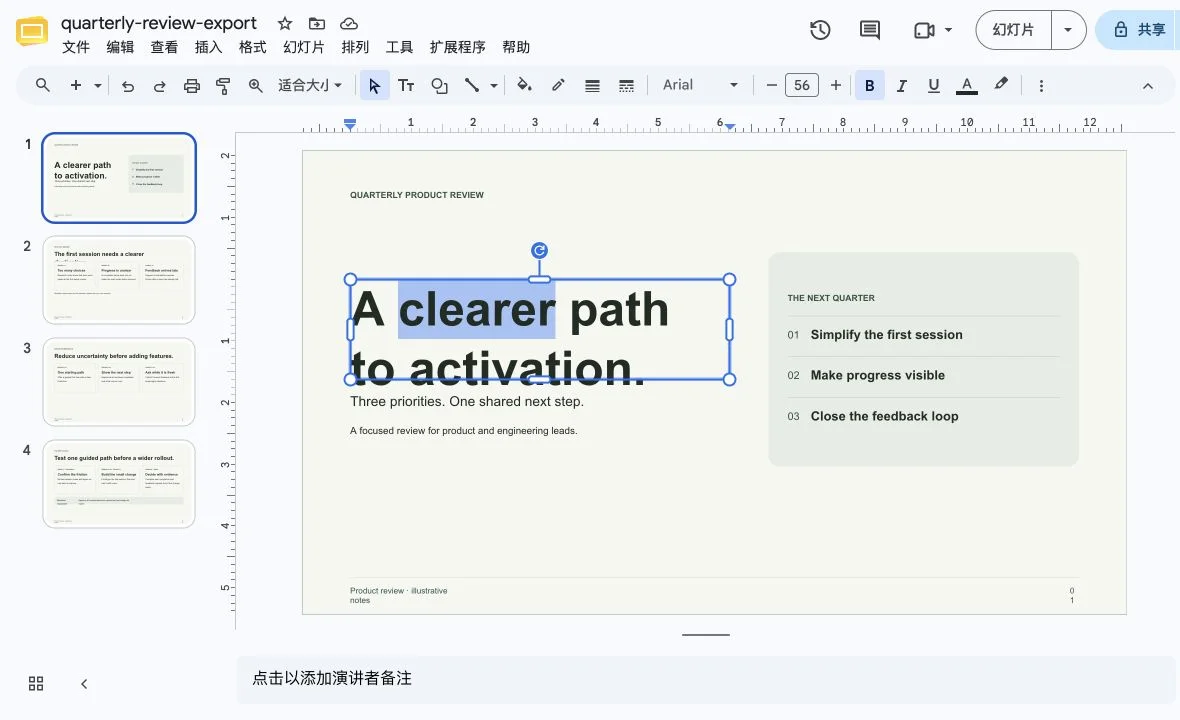
In our original four-slide test, we selected “clearer” in the first heading, changed it to “clear,” and reloaded the native Slides copy. The edit remained saved. The toolbar showed Arial, matching the sample’s source font. This was a check of that heading, not a custom-font or all-object compatibility test.
Common layout problems and practical fixes
A wrapped heading overlaps the content below
The original quarterly-review sample used a longer second-page heading. It fit on one line in the HTML preview, but wrapped behind the cards in Google Slides. This was visible in Office editing mode, before saving a native Slides copy.
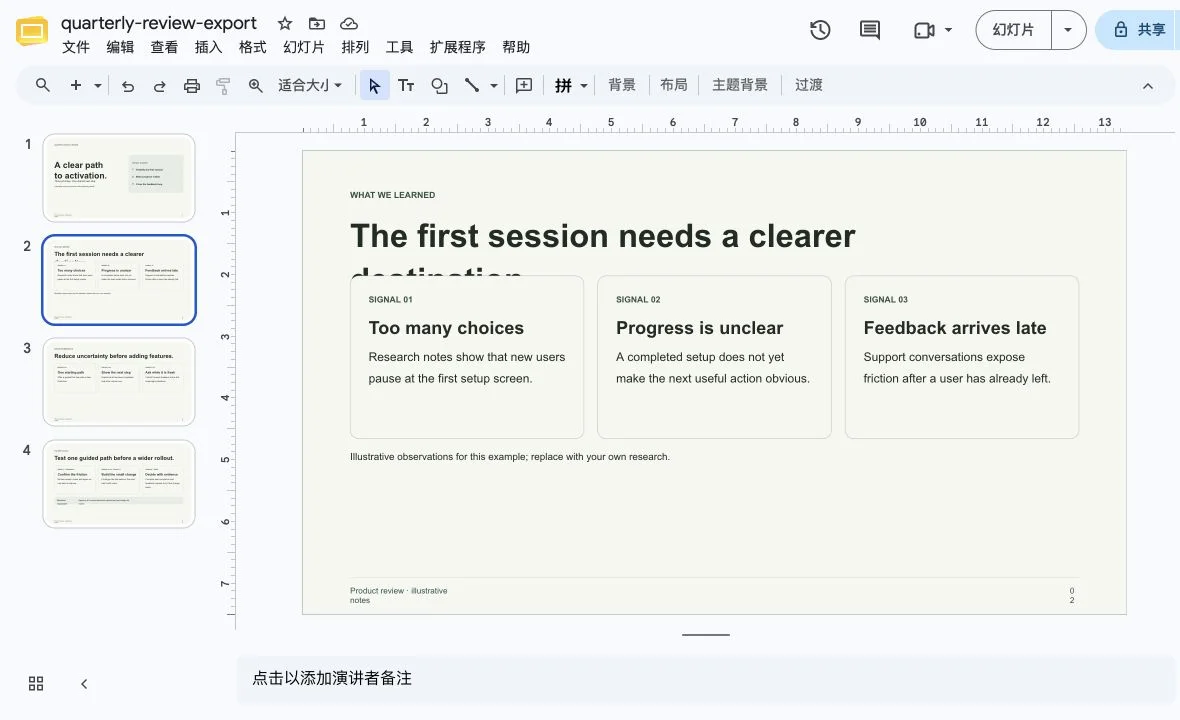
Shorten the heading, reduce its source font size, or add space before the next block. The main example uses “Give the first session one goal.” Export again and check the destination; changing the source does not update a previously uploaded PPTX.
Fonts or footer wrapping changed
Inspect the actual font and text-box dimensions. If a font is unavailable, choose an available replacement and check again. Our sample does not establish one universal fallback font, and we did not identify missing fonts as the cause of its original overlap.
You can move a visual but cannot change its words
It may be a picture or a group. Check the object before concluding that the text is unavailable. See how to inspect editable PPTX text.
For missing assets and source clipping, use the worked troubleshooting guide. These examples have not been visually accepted in desktop Microsoft PowerPoint.
Frequently asked questions
Can SlideBeaver save directly to Google Drive?
The current workflow downloads a PPTX. You upload it to Google Drive yourself.
Does this embed a live website or preserve animations?
The PowerPoint export is static. Keep the original HTML if you need browser interactions.
Will everything be editable?
Supported text and shapes may remain objects; pictures remain pictures. Check the specific words and diagrams your recipient needs to revise.
What if my HTML came from Gemini?
Follow the Gemini HTML editing and export workflow to save the complete source and make your final changes.
Have your HTML ready?
Open the editor · Check PPTX editability · Browse all guides