Why standard Marp PPTX exports cannot be edited in PowerPoint
Marp is great for writing slides in Markdown, but handing that deck to a non-technical teammate usually hits a wall. Standard Marp CLI and VS Code .pptx exports rasterize every slide into a full-bleed background picture so custom CSS looks identical—meaning nobody can click a heading, bullet, or metric cell in PowerPoint to fix a number.
Marp’s experimental --pptx-editable flag requires a local LibreOffice Impress installation on your machine, and Marp’s exported .html wraps slides inside <svg><foreignObject> containers that complicate downstream conversion. Uploading your raw .md file directly into SlideBeaver parses headings, lists, pipe tables, code blocks, and quotes into standard HTML slide elements first, then runs our browser-based HTML to PPTX converter.
1. Upload your Marp or Markdown (.md) deck
Open SlideBeaver, click Upload, and choose your .md or .markdown file (up to 60 slides per file). Everything is parsed in your browser memory:
- YAML frontmatter & directives: Leading frontmatter (such as
marp: true,theme: gaia, ortitle) and HTML directive comments like<!-- _class: lead -->are stripped cleanly instead of appearing as visible slide text. - Slide dividers: Horizontal rules (
---or***) split slides while ignoring YAML delimiters, fenced code blocks, and Markdown table separator rows. If a notes file has no---dividers, SlideBeaver falls back to splitting on top-level#or##section headings. - Automatic palette hint: Warm themes like
gaiaopen in the Warm Oatmeal palette, dark themes likeinvertmap to Deep Mineral, and default Markdown decks open in Sage Forest.
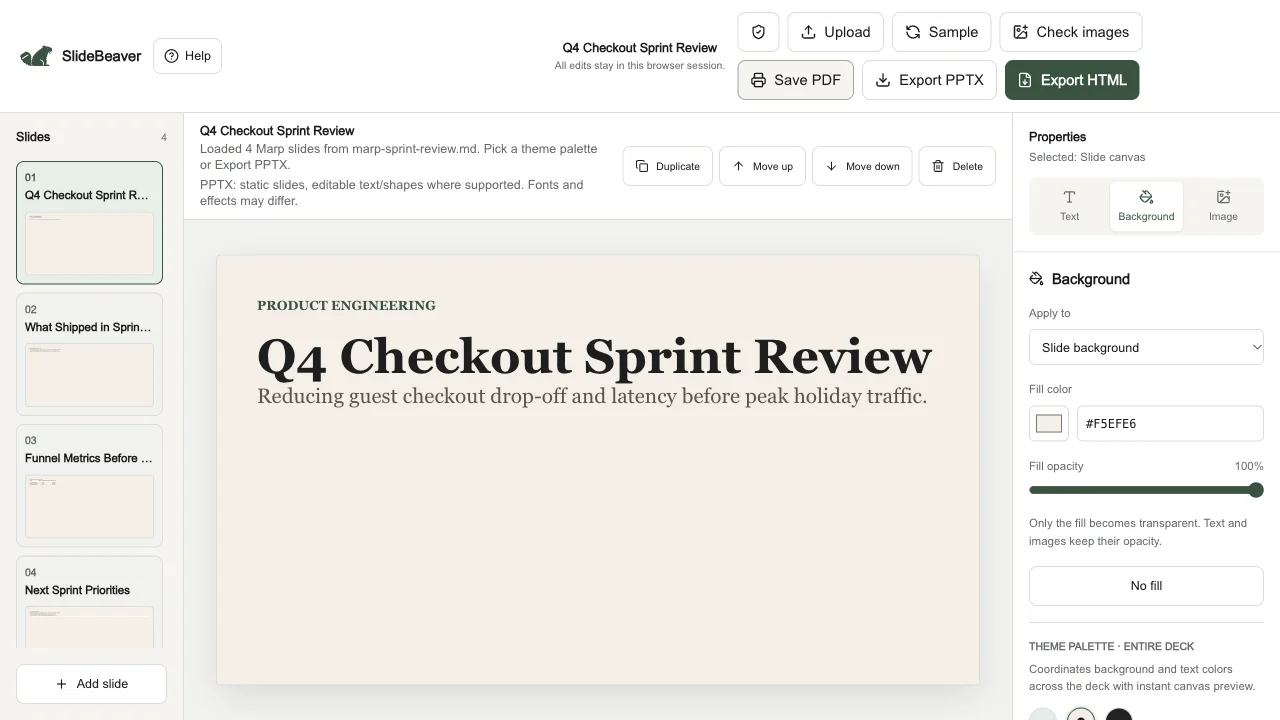
2. Switch theme palettes, check tables, and edit text visually
Once imported, your Markdown deck behaves like any native theme deck in the online slide editor. Open the right-hand Background tab to switch the entire deck between Sage Forest, Warm Oatmeal, and Deep Mineral, or use the Text tab to toggle serif (Lora) and sans-serif (Inter) typography.
Click any heading, bullet item, blockquote, or table cell on the canvas to rewrite copy before exporting. You can also click Save PDF if you need a matching 16:9 widescreen PDF alongside your PowerPoint file.
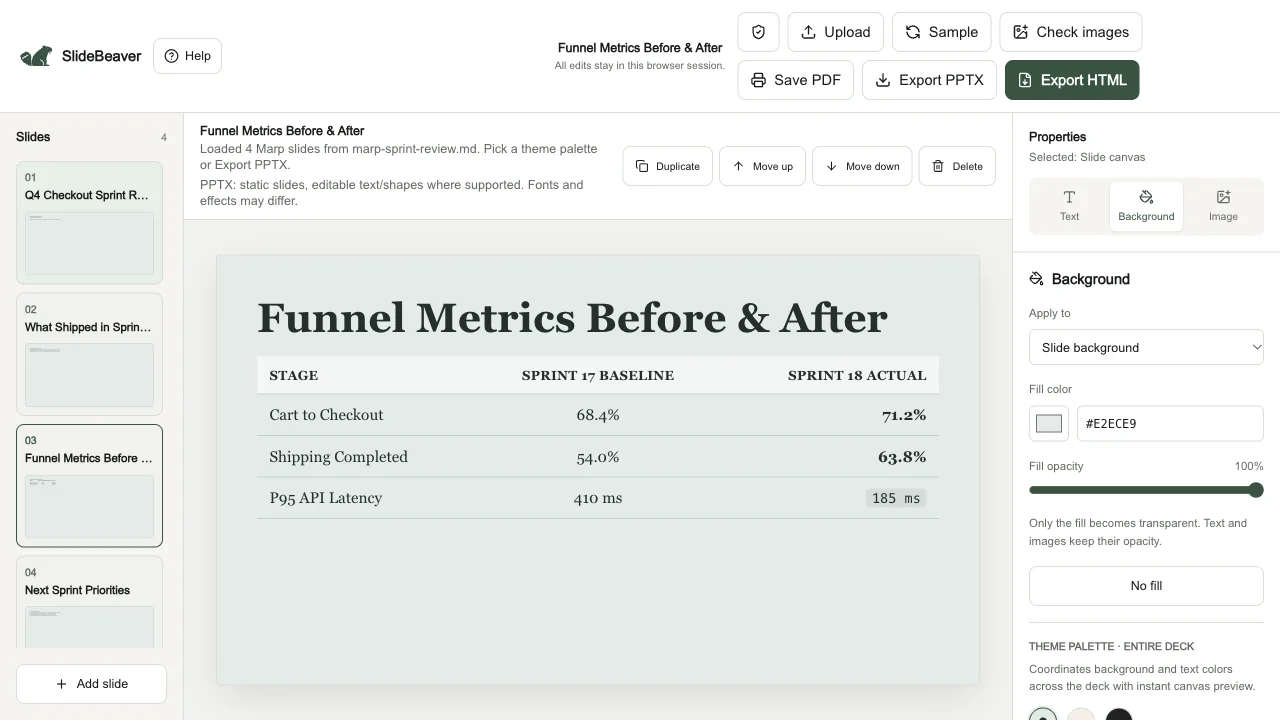
3. Export PPTX and verify editable text and table cells
Click Export PPTX to generate a .pptx file directly in your browser. Download our actual exported sample below to inspect how the four Markdown slides translate into PowerPoint objects.
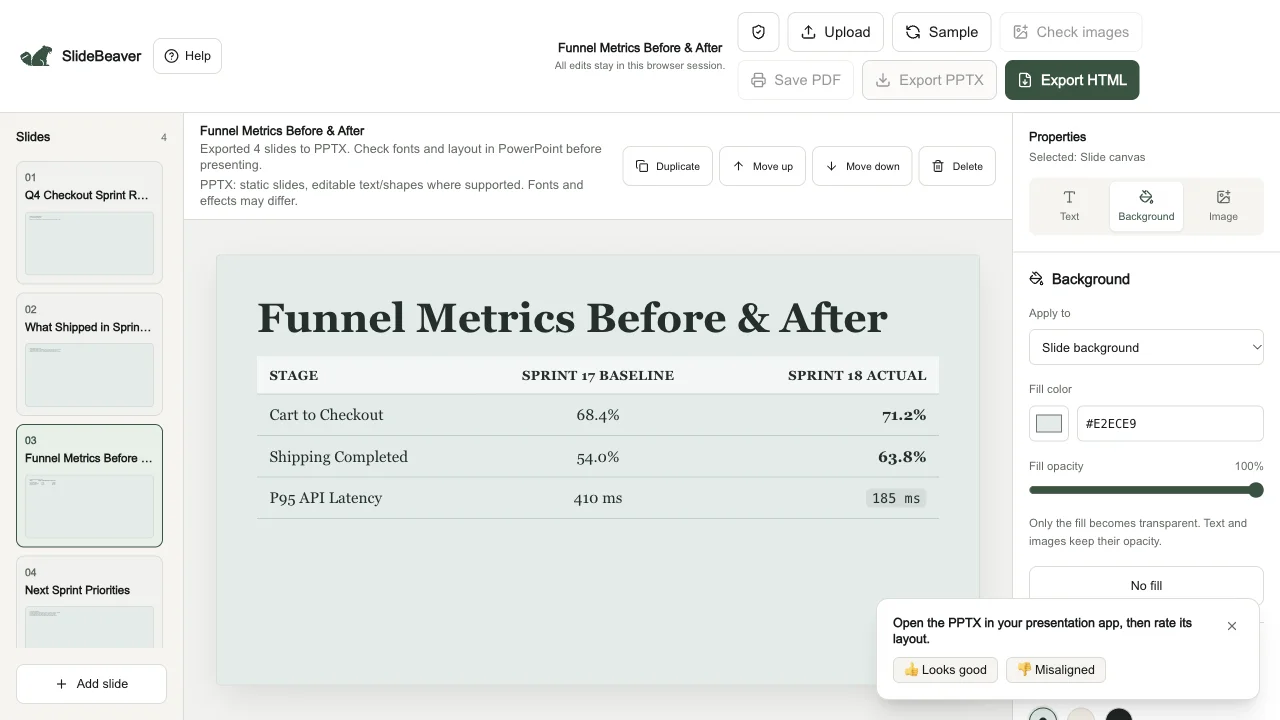
What our OpenXML check confirmed on this sample
Inspecting the generated ppt/slides/slide1.xml through slide4.xml archive structure from marp-sprint-review.pptx confirmed:
- 4 slides and 27 editable text runs (
<a:t>): Headings, bullet points, inline code (POST /v2/checkout/confirm), numbered priorities, and the closing blockquote text all exported as selectable text runs rather than full-slide screenshots. - Native PowerPoint table (
<a:tbl>): Slide 3’s three-column Markdown pipe table exported as a structured PowerPoint table object with 12 editable header and body cells and zero rasterized pictures. - Decorative chrome fallback: On slide 4, the blockquote’s left accent bar and translucent card fill exported as two supporting picture layers behind the editable text box.
This verification checks the exported OpenXML archive and Chromium editor rendering; we have not visually accepted this sample in desktop Microsoft PowerPoint. Always open your downloaded file in PowerPoint or follow our Google Slides import guide, and use the editable PPTX checklist to confirm line breaks and fonts on the machine that will present.
Supported Markdown syntax and current Marp boundaries
- Supported cleanly: YAML frontmatter removal,
---/***slide breaks,#–####headings, bullet and numbered lists (including one nested level), pipe tables, fenced code blocks, blockquotes, bold/italic/strikethrough/inline code, safe links, and basic Marp image width hints like. - Not executed or preserved: Custom Marp
@themeCSS stylesheets, scoped HTML/CSS layout grids embedded inside Markdown, split-background image directives (mapped to standard movable images instead), MathJax/KaTeX formulas, and Mermaid diagram scripts. - If you need pixel-custom CSS layouts: Ask Claude or Gemini to generate a complete
1920 × 1080HTML deck (see our HTML presentation prompt) and upload that.htmlfile in original layout mode instead.
Frequently asked questions
Should I upload my .md file or the .html exported by Marp CLI?
Upload the original .md file. Marp’s HTML export wraps slide content inside <svg><foreignObject> scaling elements, whereas importing .md directly builds clean HTML headings, lists, and tables for PowerPoint conversion.
Do I need to install Node.js, Marp CLI, or LibreOffice?
No. Both Markdown parsing and PPTX generation run inside your desktop browser with no local CLI dependencies.
Why do fonts look slightly different when I open the PPTX?
SlideBeaver does not embed font files inside the PPTX archive. If the receiving computer does not have Lora or Inter installed, PowerPoint or Google Slides substitutes a system serif or sans-serif font, which can shift line wrapping. See the layout troubleshooting guide if a heading wraps tightly.
Are my Markdown notes uploaded to a cloud server?
No. Your .md source is read via the browser’s local File API and stays in your current browser tab session.
Have your Marp or Markdown file ready?
Open the editor · Check PPTX editability · Browse all guides